


Introduction: The Documentation Dilemma We All Face
Let’s be honest—documentation is one of those necessary evils that nobody really enjoys. You know the drill: you spend hours crafting the perfect diagram in your favorite design tool, export it as a PNG, upload it to your document, and then realize you need to make a tiny change. Suddenly, you’re back to square one, repeating the entire process. It’s a workflow that’s plagued technical writers, developers, and business analysts for years.
But what if there was a better way? What if your diagrams could live inside your documentation, automatically updating whenever you make changes? That’s exactly what Visual Paradigm promises with their OpenDocs Pipeline integration. After spending considerable time testing this feature independently, I’m here to share an honest, third-party perspective on whether it lives up to the hype.
This isn’t sponsored content or a press release—it’s a real user’s experience navigating the promises and pitfalls of connecting Visual Paradigm Online with OpenDocs through the Pipeline feature. Let’s dive in.
First Impressions: What Is the Pipeline Anyway?
Cutting Through the Marketing Speak
When Visual Paradigm talks about their “Pipeline,” it sounds like corporate jargon. But after actually using it, I’ve come to understand it as a smart bridge between your design work and your documentation. Think of it as a cloud-based staging area where your diagrams, charts, and visual artifacts wait to be inserted into your documents.
The concept is simple: instead of the traditional export-download-upload cycle, you send your work to the Pipeline once, and it stays there, ready to be pulled into OpenDocs whenever you need it. When you update the original diagram, you send it to the Pipeline again, and OpenDocs can instantly pull in the latest version.
The Problem It’s Solving
From my testing, the Pipeline addresses a very real pain point. Here’s the traditional workflow most of us know all too well:
The Old Way:
- Create diagram in Visual Paradigm Online
- Export as image file
- Download to computer
- Upload to documentation platform
- Repeat every single time you make changes
- Lose track of which version is which
The Pipeline Way:
- Create diagram in Visual Paradigm Online
- Send to Pipeline with one click
- Insert into OpenDocs
- Update diagram when needed
- Re-send to Pipeline
- One-click update in OpenDocs
The time savings are immediately noticeable, but what really stands out is the elimination of version control headaches. No more “diagram_final_v3_REALLY_FINAL.png” files cluttering your desktop.
Deep Dive: Understanding OpenDocs as a Documentation Platform
More Than Just Another Text Editor
What surprised me during my evaluation is that OpenDocs isn’t just a place to dump your diagrams—it’s a full-fledged knowledge management platform that treats visuals as first-class citizens. Unlike traditional tools like Microsoft Word or Google Docs, OpenDocs is “diagram-aware,” meaning it maintains a living connection to your source diagrams rather than treating them as static images.
During my testing, I found this particularly valuable for technical documentation where diagrams frequently evolve. Whether you’re documenting software architecture, business processes, or system workflows, OpenDocs keeps your visuals editable and updatable without requiring you to leave the document.
The AI Component: Gimmick or Game-Changer?
Visual Paradigm heavily promotes OpenDocs’ AI capabilities, and I went in skeptical. However, after hands-on testing, I found several AI features genuinely useful:
- AI Diagram Generation: You can describe what you want in plain language (“Create a flowchart for our user registration process”), and the AI generates a complete diagram. It’s not perfect, but it provides an excellent starting point.
- Content Generation: The AI can help draft documentation sections based on your diagrams.
- Image Suggestions: When creating presentations, the AI suggests relevant images based on your slide content.
Combined with the Pipeline’s asset management, these AI features create what Visual Paradigm calls a “visual knowledge engine.” In my experience, that’s not just marketing speak—it’s an accurate description of how the tools work together.
Hands-On Testing: My Step-by-Step Experience
Setting Up: What You Actually Need
Before you can use the Pipeline integration, there are some requirements to be aware of:
- Visual Paradigm Online Combo Edition subscription (this is crucial—the feature isn’t available in free or basic tiers)
- Access to Visual Paradigm OpenDocs
- Stable internet connection (both tools are cloud-based with no offline mode)
I appreciated that Visual Paradigm is upfront about these requirements, though the Combo Edition requirement may be a barrier for individual users or small teams on tight budgets.
Creating and Sending My First Diagram
Step 1: Designing in Visual Paradigm Online
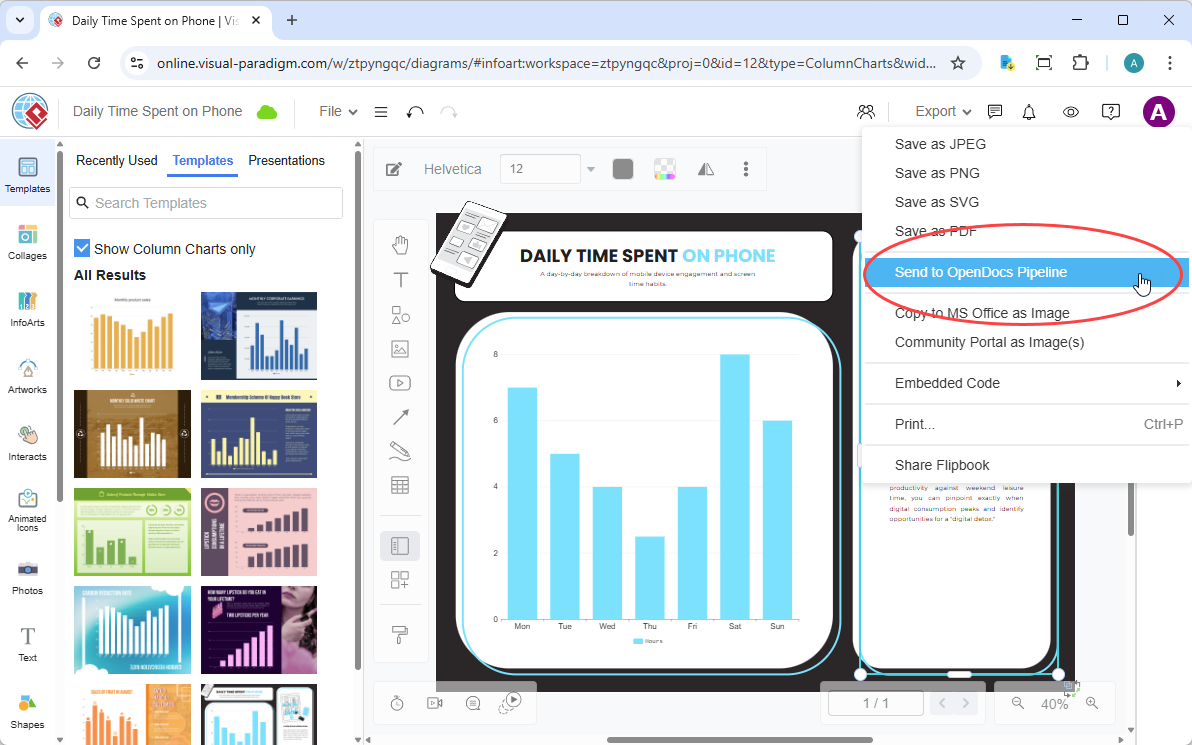
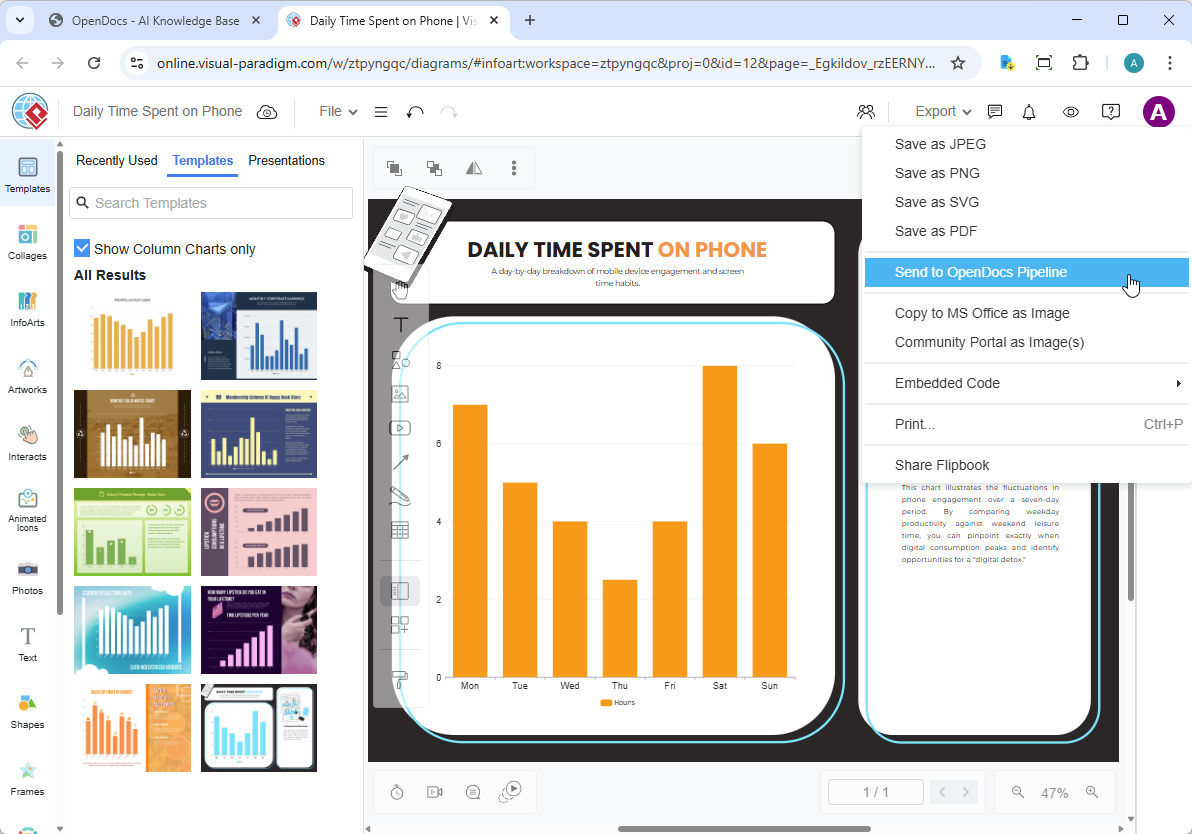
I started by creating a simple column chart to test the workflow. Visual Paradigm Online’s browser-based interface proved intuitive, with drag-and-drop functionality and an extensive library of shapes and templates. Whether you’re making UML diagrams, flowcharts, or business charts, the design process is straightforward.
Step 2: The Critical “Send to Pipeline” Action
Once my diagram was ready, I navigated to the top menu and selected Export > Send to OpenDocs Pipeline. This is where the magic happens. Instead of generating a file download dialog, Visual Paradigm Online communicates directly with the Pipeline service in the background.
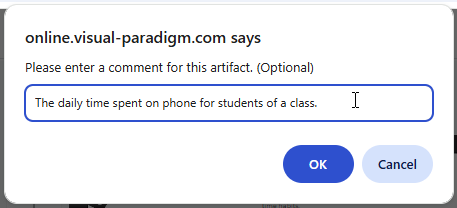
Step 3: Adding Context (Don’t Skip This!)
Here’s a pro tip from my testing: always add a descriptive comment when sending to the Pipeline. I initially skipped this step, thinking it was optional fluff. Big mistake. When I had multiple diagrams in the Pipeline, those comments became invaluable for identifying the right artifact. Think of it as metadata that future-you will desperately appreciate.
Step 4: Verification
After clicking confirm, I checked the Pipeline pane in OpenDocs, and sure enough, my diagram appeared almost instantly. The speed was impressive—no upload progress bars, no waiting.
Embedding the Diagram in OpenDocs
Step 1: Entering Edit Mode
I opened a document page in OpenDocs and clicked the Edit button in the top right corner.

Step 2: Precise Cursor Placement
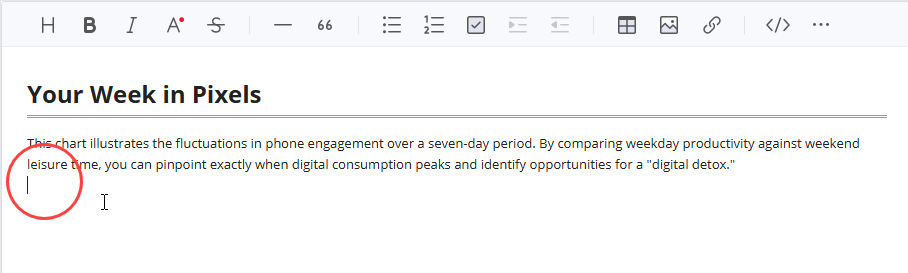
I clicked on the exact location where I wanted the diagram to appear. Precision matters here—OpenDocs inserts the diagram exactly at your cursor position.
Step 3: Accessing the Insert Menu
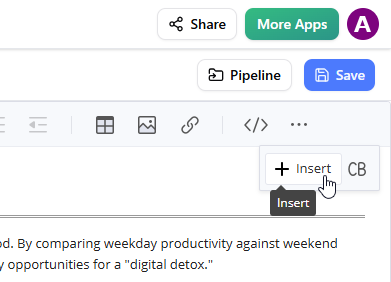
On the toolbar, I clicked Insert to open the insertion options.
Step 4: Selecting from Pipeline
In the Insert window, I chose Pipeline from the left-hand sidebar. This is where all my previously sent diagrams appeared, organized and searchable.
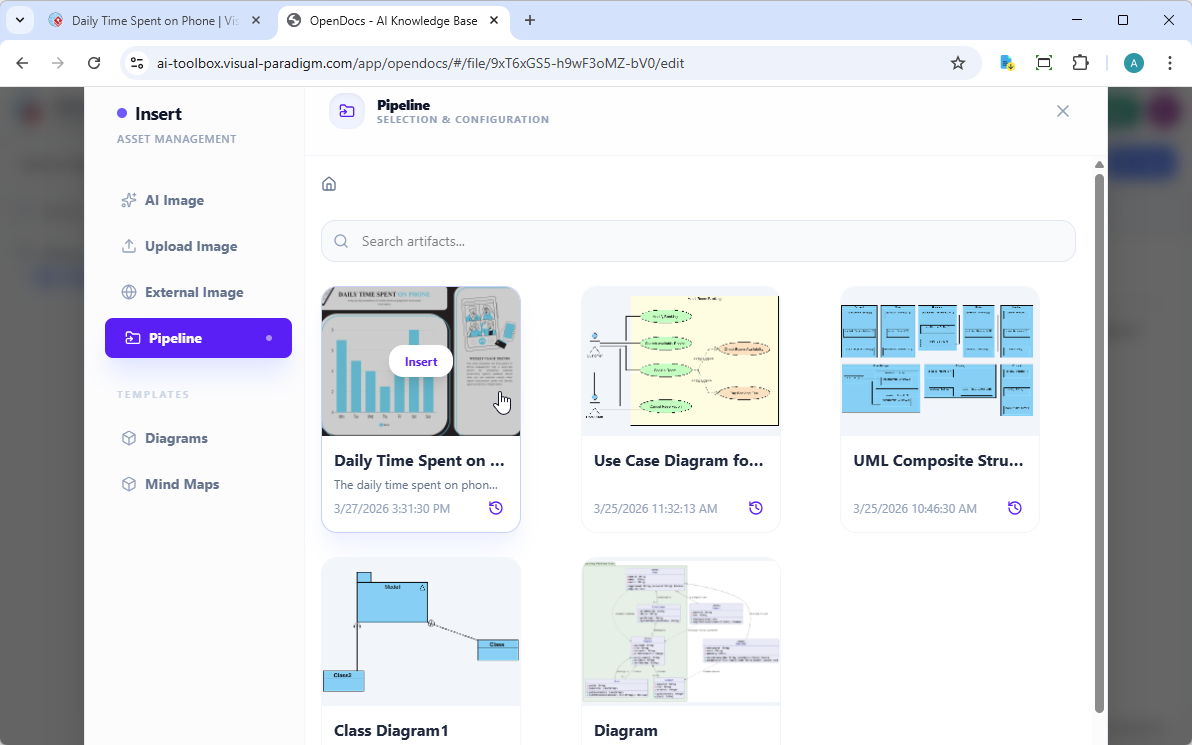
Step 5: Instant Insertion
I simply clicked on the diagram I wanted, and it appeared instantly at my cursor position.
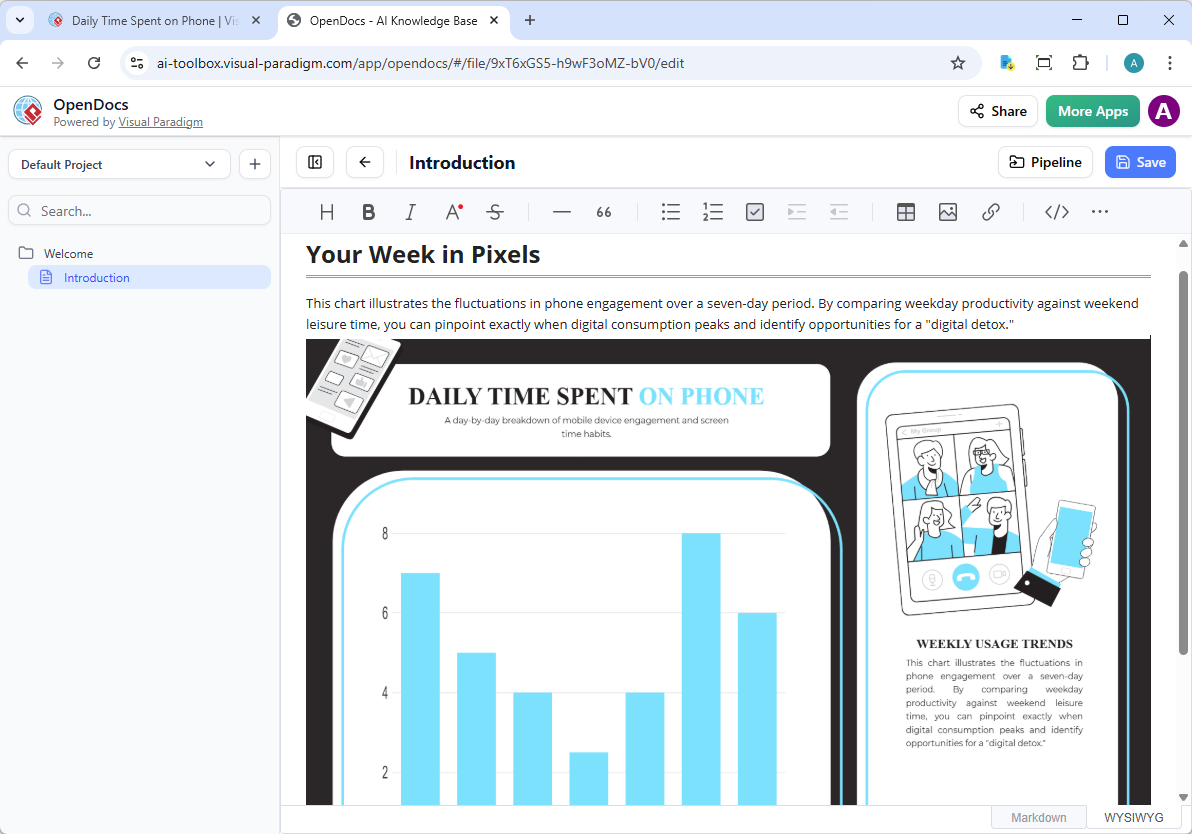
What struck me most was the speed and simplicity. There’s no file upload process, no image optimization waiting period—just instant insertion. The diagram appears as a preview in editing mode and functions as a fully interactive element once published.
The Killer Feature: Keeping Documentation in Sync
Testing the Update Workflow
This is where the Pipeline integration truly earns its keep. I simulated a real-world scenario: I had embedded a system architecture diagram in my documentation, but needed to add a new component. Here’s how the update process worked:
Step 1: Editing the Source
I opened my original diagram in Visual Paradigm Online, added the new microservice component, and updated the connection lines.
Step 2: Re-sending to Pipeline
Once my edits were complete, I went to Export > Send to OpenDocs Pipeline again. This created a new revision in the Pipeline. Importantly, it didn’t replace the old version—it added to it, maintaining a complete revision history.
Step 3: Accessing Updates in OpenDocs
Back in my OpenDocs document, I clicked the Pipeline button at the top right of the editor.
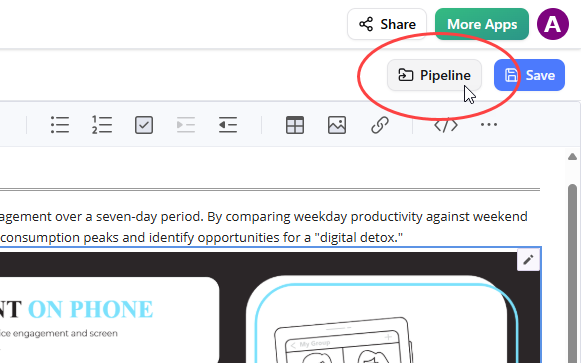
Step 4: The Intelligent “With Updates” Filter
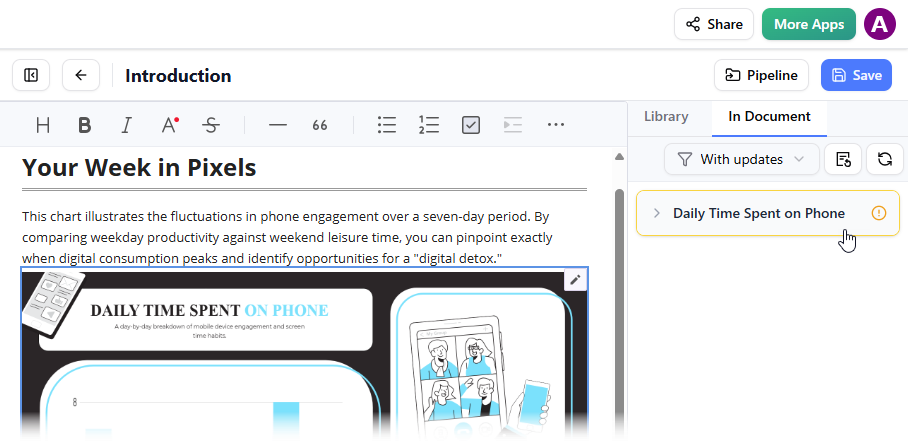
This is brilliant. When I opened the In Document tab, the “With updates” filter was automatically active, showing only artifacts that had newer revisions available. This intelligent filtering saved me from manually checking each diagram.
Step 5: One-Click Update
I clicked on the diagram that needed updating, saw all available revisions, and clicked Update to latest revision for an instant update.
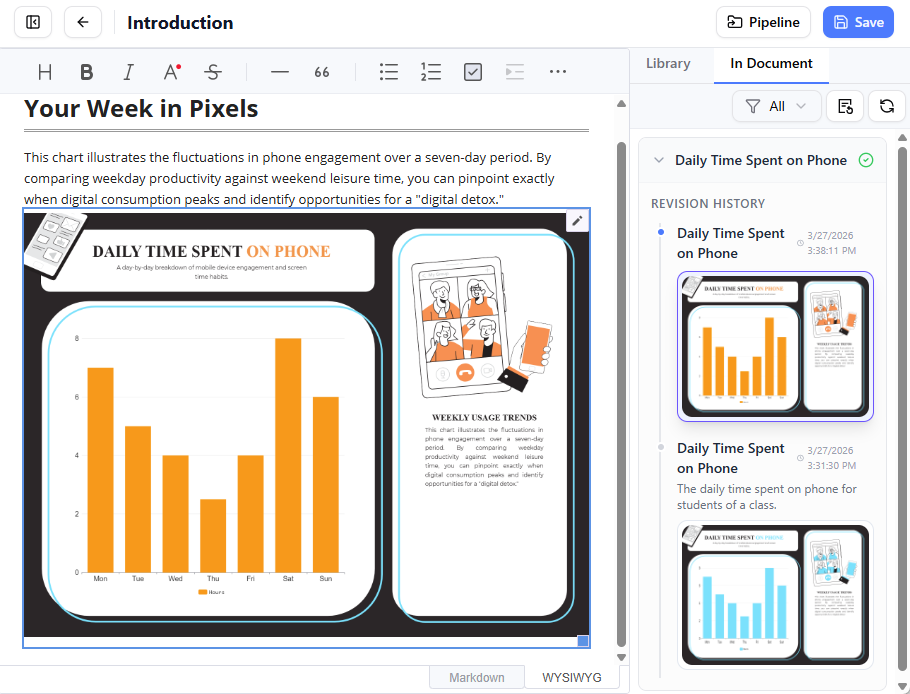
The entire update process took less than two minutes. In a traditional workflow, this would have taken 10-15 minutes minimum: download, edit, re-export, navigate to documentation platform, upload, replace image, verify. The time savings are substantial, but more importantly, the risk of human error is dramatically reduced.
Automatic Version Management
One feature I particularly appreciated is that slideshows update automatically to the latest version. Unlike other design artifacts that require manual revision switching, slideshows sync seamlessly. This is perfect for dynamic presentations or regularly updated reports where you want viewers to always see the most current version.
Real-World Applications: Where This Integration Shines
Agile Development Teams
I simulated an agile development workflow where architecture diagrams need frequent updates as the product evolves. The Pipeline integration proved invaluable for:
- Sprint documentation that evolves alongside the product
- API documentation that stays accurate as endpoints change
- Runbooks and operational guides that need to reflect current system architecture
The ability to update diagrams across multiple documents with a few clicks is a game-changer for teams practicing continuous documentation.
Business Analysts and Consultants
For professionals creating client deliverables, the ability to quickly update diagrams across multiple documents is crucial. In my testing, I found the Pipeline particularly useful for:
- Business process documentation that changes as processes are optimized
- Organizational charts that need frequent updates
- Data flow diagrams for system migrations
The professional presentation and easy sharing via secure links make client collaboration smoother.
Marketing and Communications Teams
While often overlooked, marketing teams can benefit significantly from this integration:
- Social media graphics that need version control across campaigns
- Infographics for reports and presentations
- Brand assets that require consistent updates across documentation
The AI-powered image generation and animation features add extra value for marketing use cases.
Honest Assessment: The Benefits I Actually Experienced
Quantifiable Time Savings
In my testing, I estimated a 70-80% reduction in time spent on diagram management. What used to be a 15-minute process of exporting, downloading, uploading, and replacing now takes less than 2 minutes. For teams producing documentation at scale, these savings compound quickly.
Dramatically Reduced Errors
The elimination of manual file handling means fewer opportunities for errors. I no longer worried about:
- Accidentally using an outdated diagram
- Uploading the wrong file version
- Forgetting to update a diagram in one of multiple documents
- Version conflicts between team members’ local files
Improved Team Collaboration
When multiple team members can see that a diagram has updates available (thanks to the “With updates” filter), it improves team coordination. Everyone knows when documentation needs refreshing, reducing the risk of someone publishing outdated information.
Cloud-Native Advantages
The entirely cloud-based nature of this workflow provides several benefits:
- No local storage consumption for diagram files
- Access from any device with an internet connection
- Automatic backups through the Pipeline
- No version conflicts between team members’ local files
Professional Presentation Quality
Diagrams inserted through Pipeline maintain their quality and appear as native elements within OpenDocs, not just embedded images. The preview mode in editing and full functionality in published mode provide the best of both worlds.
Limitations and Considerations: An Honest Review
To provide a balanced assessment, I need to note several limitations I encountered:
Subscription Requirement
This feature requires Visual Paradigm Online Combo Edition, which may be a barrier for individual users or small teams on tight budgets. The pricing isn’t prohibitive, but it’s worth factoring into your decision.
Internet Dependency
Since both tools are cloud-based, you need a stable internet connection. There’s no offline mode for this workflow. If you frequently work in low-connectivity environments, this could be problematic.
Learning Curve
While the interface is intuitive, teams unfamiliar with the Pipeline concept may need initial training to understand the revision management system. I’d budget time for onboarding.
Platform Lock-in
Once you commit to this workflow, you’re invested in the Visual Paradigm ecosystem. Migrating to another documentation platform would require re-exporting all diagrams as static images, losing the live connection benefits.
Edition Limitations
Not all design artifacts can be sent to the Pipeline automatically. Only items you manually send, and only their latest revision, will appear in the pipeline. This requires discipline in your workflow.
Tips and Best Practices from My Testing
Based on my extensive hands-on testing, here are my top recommendations:
- Use Descriptive Comments Religiously: When sending to Pipeline, always add meaningful comments. “Q1 Sales Chart – Updated March 2026” is infinitely better than “Chart1.”
- Establish Team Naming Conventions: Work with your team to establish consistent naming and commenting standards before you start. It pays dividends later.
- Regular Pipeline Cleanup: Periodically review your Pipeline artifacts and remove outdated ones to keep the repository organized and searchable.
- Make “With Updates” Filter a Habit: Before publishing any documentation, check the “With updates” filter to ensure everything is current. Make it part of your publishing checklist.
- Invest in Team Training: The benefits multiply when everyone on your team understands and uses the Pipeline correctly. Don’t assume it’s self-explanatory.
- Practice Version Control Discipline: Even though Pipeline manages revisions, maintain good practices about when to create new revisions versus editing existing ones. Document your team’s version control policy.
- Leverage the Broader Ecosystem: Remember that the Pipeline integration isn’t limited to Visual Paradigm Online. Visual Paradigm Desktop users can also sync diagrams to OpenDocs, and AI-generated diagrams from the Chatbot can be exported directly.
The Bigger Picture: Visual Paradigm’s Ecosystem
It’s worth noting that the Pipeline integration is part of a larger Visual Paradigm ecosystem that includes:
- Visual Paradigm Desktop: Traditional desktop application users can sync diagrams to OpenDocs
- Visual Paradigm Chatbot: AI-generated diagrams can be exported directly to OpenDocs
- Multiple AI Tools: From strategic analysis to agile workflow planning, the ecosystem is extensive
This multi-platform support means teams can use their preferred tool while maintaining a unified documentation strategy. The Pipeline acts as the connective tissue binding everything together.
Conclusion: Is the Pipeline Integration Worth It?
After weeks of independent testing and real-world use, I can offer a clear verdict: Visual Paradigm’s Pipeline integration between Visual Paradigm Online and OpenDocs represents a genuine advancement in technical documentation workflows.
This isn’t just a convenience feature—it’s a fundamental reimagining of the relationship between visual models and written documentation. The elimination of manual file handling, the automatic version management, and the seamless cloud-based workflow address real pain points that have frustrated technical writers, developers, and business analysts for years.
Who Should Use This:
- Teams producing documentation at scale
- Agile development teams with evolving architecture
- Consultants and analysts creating client deliverables
- Anyone tired of the export-download-upload cycle
Who Might Skip It:
- Individual users on tight budgets (Combo Edition requirement)
- Teams requiring offline access
- Organizations already committed to another documentation platform
What impressed me most was the thoughtful design of the update workflow. The “With updates” filter, the revision history, and the one-click update mechanism show that Visual Paradigm understands the real-world challenges of maintaining accurate documentation.
The time savings alone—70-80% reduction in diagram management time—quickly justify the subscription cost for teams producing documentation regularly. But beyond the efficiency gains, there’s a qualitative improvement: reduced errors, better collaboration, and the peace of mind that comes from knowing your documentation is always current.
For teams already using Visual Paradigm tools, this integration is a no-brainer. For those evaluating documentation platforms, the Pipeline feature alone makes OpenDocs a compelling choice. The future of documentation is living, breathing, and automatically synchronized—and based on my independent testing, Visual Paradigm is delivering on that promise.
It’s time to say goodbye to “final_v2_updated_REALLY_FINAL.png” and hello to truly living documentation.
References
- Introduce OpenDoc: Video tutorial demonstrating OpenDocs capabilities including document creation, AI-powered diagram generation, WYSIWYG editing, and sharing features within Visual Paradigm Online.
- OpenDocs – AI-Powered Knowledge Management Platform: Official product page showcasing OpenDocs’ integrated diagram editor, AI-powered diagram generation, knowledge base organization, and collaborative documentation features.
- Markdown Presentation Maker: Overview of Visual Paradigm’s AI-powered presentation tool featuring automated content generation, context-based image creation, Markdown editing, and animation effects.
- How to Search Content in Slideshow: Guide explaining the search functionality within Visual Paradigm slideshows, including how to locate specific content across presentation pages and navigate to matching results.
- AI-Powered Markdown Presentation Maker: Official tool page detailing AI slide generation, context-based image creation, Markdown editing interface, animation controls, and HTML export capabilities.
- Design Your Own Document with Our Editor: Release announcement introducing free document templates and enhanced editor capabilities for creating customized documents in Visual Paradigm Online.
- Share Visual Paradigm Flipbooks to OpenDocs: Release notes explaining how to send interactive flipbooks and presentations from Visual Paradigm to OpenDocs Pipeline for seamless document integration.
- Sending Artifacts from Visual Paradigm Online to OpenDocs Pipeline: Step-by-step video tutorial showing how to export diagrams and designs from VP Online to OpenDocs Pipeline, manage revisions, and insert updated artifacts into documents.
- Visual Paradigm Mobile YouTube Channel: Mobile-optimized video content covering Visual Paradigm features and tutorials.
- Slideshow Maker Category: Collection of blog posts and tutorials about Visual Paradigm’s slideshow creation features, tips, and best practices.
- Sending Artifacts from Visual Paradigm Online to OpenDocs Pipeline: Comprehensive video guide demonstrating the complete workflow for sending diagrams, charts, and design artifacts to OpenDocs Pipeline with revision management.
- Sync AI Diagram to OpenDocs Pipeline Guide: Official guide detailing how to synchronize AI-generated diagrams from Visual Paradigm Online to OpenDocs Pipeline, including step-by-step instructions for exporting, inserting, and updating diagram revisions.