
VPasCode is a browser-based workspace for creating and viewing diagrams from text-based code. It supports diagram languages including PlantUML, Mermaid, Graphviz, and D2, and combines code editing, live rendering, and AI-assisted tools in one place. You write or generate a diagram script, and VPasCode renders it as a visual diagram.
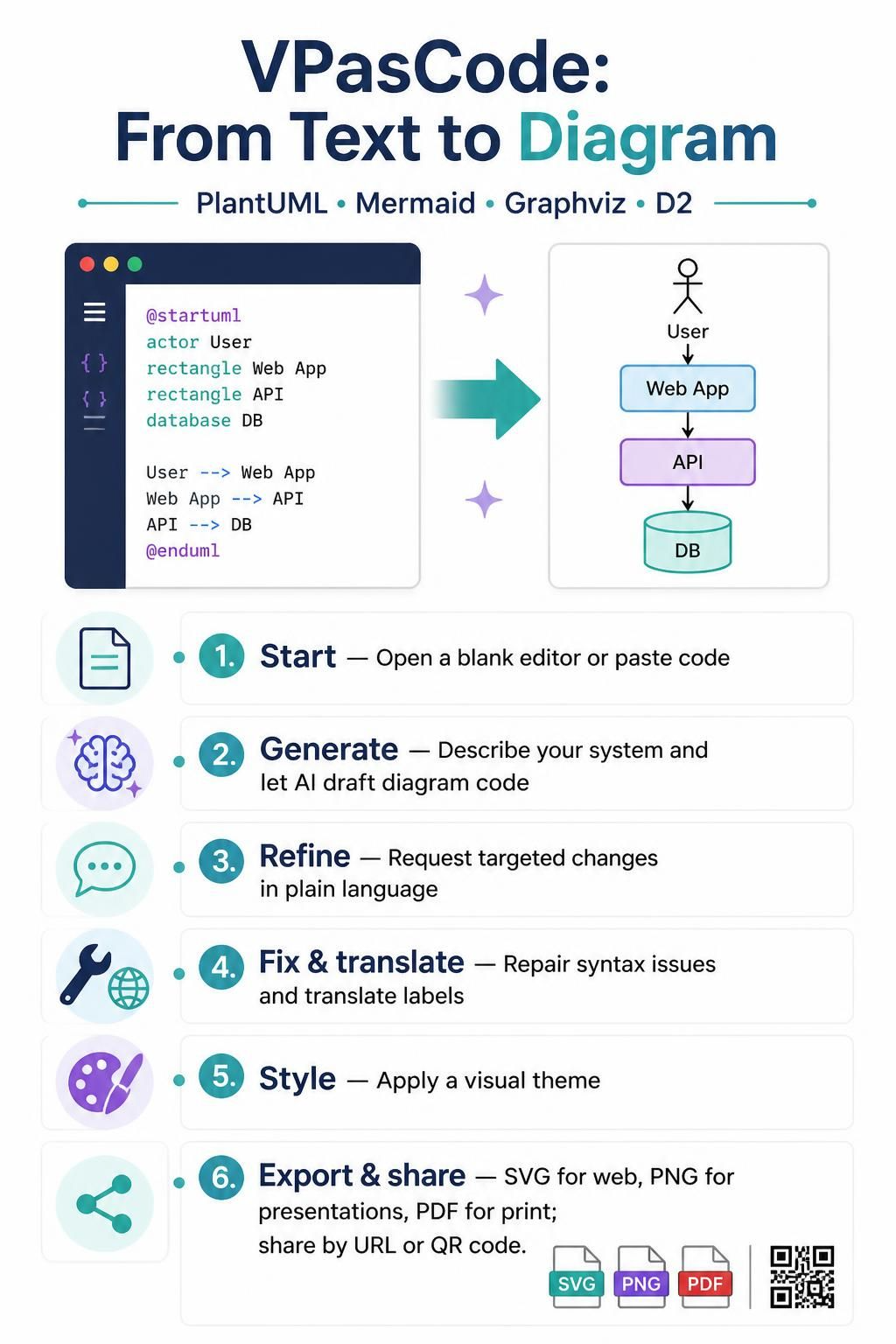
1. Start a diagram
-
Open VPasCode in your web browser.
-
Start with a blank editor, or paste in an existing diagram script.
-
For PlantUML, include the usual
@startumland@endumlmarkers. VPasCode can detect PlantUML syntax and activate the corresponding renderer. -
Check the rendered diagram as you work.
2. Generate a diagram with AI
Use the AI assistant to turn a plain-language description into diagram code. Be specific about the elements and relationships you want included.
For example, you could ask:
Create a sequence diagram for user login authentication, including the user, web app, authentication service, and database.
Review the generated code and its rendered output. Refine the prompt if important participants, steps, or relationships are missing.
3. Refine existing code
Rather than starting over, use plain-language instructions to modify a diagram you already have. Describe the change you want and where it belongs.
For example:
Add a payment gateway check immediately after the order submission step.
Then review the updated code and diagram to make sure the change fits the intended workflow.
4. Fix errors
If the diagram does not render as expected, use the AI Code Error Fixing tool to help diagnose and repair syntax problems. It can identify issues such as typos, missing brackets, or misaligned tokens, make a correction, and explain what went wrong.
After applying a fix, inspect both the code and the rendered diagram to confirm the result is correct.
5. Translate diagram text
Use the AI Diagram Translation tool to translate text within a diagram, such as labels, class properties, and message descriptions. This can help prepare diagrams for international teams.
Review the translated terms in context, especially technical vocabulary and names that should remain unchanged.
6. Apply a theme
Choose a theme in the editor to adjust the diagram’s visual style. Available options include Visual Paradigm’s Classic theme and classic alternatives. Theme settings can apply the appropriate skin parameters for you.
Check the result for readability and consistency before exporting.
7. Export and share
Choose an export format that suits how the diagram will be used:
| Format | Useful for |
|---|---|
| SVG | Scalable web documentation and technical wikis |
| PNG | Chat apps, bug trackers, and presentations |
| Formal documents and printing |
To share a diagram, use a direct URL or a QR code generated by the platform.
A practical workflow
-
Describe the system, process, or architecture you want to model.
-
Generate the initial diagram code with AI, or paste in an existing script.
-
Review the live rendering and refine the diagram with targeted instructions.
-
Use error fixing if syntax problems prevent rendering.
-
Translate labels or apply a theme if needed.
-
Export in the format that fits your documentation or presentation.
-
Share the diagram using its URL or QR code.