
Mastering UML Use Case Diagrams: Visualizing System Interactions with Visual Paradigm
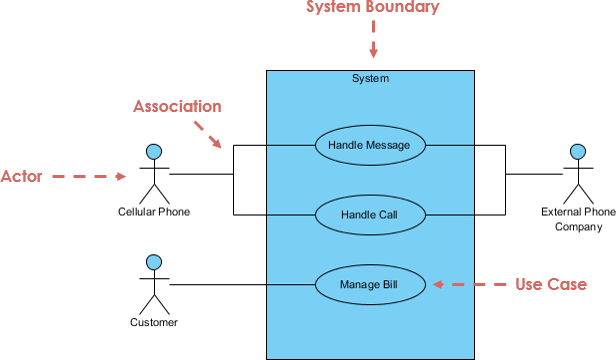
In the world of software engineering, understanding what a system must do is often just as critical as knowing how it does it. This is where the Use Case Diagram becomes an indispensable tool. A Use Case Diagram provides a high-level, graphical representation of the functional requirements of a system. It focuses on the interactions between external entities, known as Actors, and the system itself.
This tutorial will guide you through the core concepts of Use Case Diagrams, the anatomy of the diagram shown in your reference material, and how to effectively model these interactions using industry-standard tools like Visual Paradigm.
1. The Core Concept: Actors vs. System
At its heart, a Use Case Diagram is a contract between the system and its environment. It defines the boundaries of the system and identifies who or what interacts with it.
Understanding Actors
An Actor represents a role played by a user or another system that interacts with the subject. Actors are external to the system and do not exist within the system’s internal logic. In the diagram provided, we see three distinct actors:
- Customer: A human user who interacts with the system to manage financial data.
- Cellular Phone: A device or technical actor that initiates communication.
- External Phone Company: Another system or service provider that interacts with our system.
Note: Actors are depicted as the standard “stick figure” icon. The label below the figure indicates the role, not necessarily the specific name of a person.
The System Boundary
The System Boundary (the blue rectangle in your image) is a critical element. It is a box that encapsulates the use cases. It clearly defines the scope of the project. Anything inside the box is part of the system’s responsibility; anything outside is an external entity.
2. Anatomy of the Diagram
To effectively model a system, you must understand the specific components that make up the diagram. Let’s break down the elements labeled in your reference image.
Use Cases
A Use Case represents a specific function or goal that the system provides to an actor. It is drawn as an oval inside the system boundary. In our example, the system offers three main functions:
- Handle Message: Likely processing SMS or text data.
- Handle Call: Processing voice call data.
- Manage Bill: Handling billing and invoicing information.
Associations
An Association is the line connecting an actor to a use case. It represents the communication flow or interaction between the actor and the system.
- A solid line typically indicates a direct association.
- A dashed line (as seen with the “Customer” and “Cellular Phone” in the image) often implies a looser or optional dependency, or simply serves a diagrammatic purpose to distinguish different types of interactions.
3. Modeling Best Practices
When creating Use Case Diagrams in Visual Paradigm, keep these architectural principles in mind to ensure your model remains clear and maintainable.
- Keep Actors External: Never place an actor inside the system boundary. If an entity is part of the system’s internal processing, it should be modeled as a class or component, not an actor.
- Focus on “What”, not “How”: Use Cases describe functionality. Avoid describing technical implementation details (e.g., “Connect to SQL Database”) inside a Use Case. Instead, describe the goal (e.g., “Retrieve User Data”).
- Grouping: For complex systems, you can group related use cases into Use Case Packages to reduce visual clutter.
4. Implementation in Visual Paradigm
Visual Paradigm (VP) makes constructing these diagrams intuitive. Here is how you would replicate the architecture shown in the image:
- Create the Project: Open Visual Paradigm and create a new project with the “UML” profile.
- Add the System Boundary: Insert a “Use Case Diagram” and drag a “Use Case Box” onto the canvas. Rename it to “System”.
- Define Actors: Drag “Actor” icons from the toolbar onto the canvas. Place them outside the system boundary.
- Create Use Cases: Drag “Use Case” ovals into the system boundary. Rename them to match your system’s functions (e.g., “Handle Call”).
- Connect the Elements: Use the “Association” tool to draw lines connecting the actors to the relevant use cases. Right-click the line to toggle line styles (solid vs. dashed) to match your specific modeling requirements.
Diagram Structure Snippet
If you were to define the logic of this interaction in a structured text format, the relationships would look like this:
@startuml
skinparam componentStyle rectangle
skinparam actorStyle awesome

rectangle "System" {
  usecase "Handle Message" as UC1
  usecase "Handle Call" as UC2
  usecase "Manage Bill" as UC3
}

actor "Customer" as C
actor "Cellular Phone" as CP
actor "External Phone Company" as EPC

C --> UC3
CP --> UC1
CP --> UC2
EPC --> UC2
EPC --> UC1

@enduml
Conclusion
The Use Case Diagram is your first line of defense against scope creep. By clearly defining the actors and the boundaries of the system, you create a shared vocabulary for stakeholders and developers. Whether you are building a simple billing system or a complex telecommunications network, mastering the use of actors, use cases, and associations is essential for successful system architecture.