
Mastering UML Timing Diagrams: A Visual Paradigm Guide to Real-Time Modeling
In the complex world of software and system architecture, understanding how a system behaves over time is just as critical as understanding what it does. While sequence diagrams excel at showing the order of interactions, they often fail to capture the duration of events or the synchronization of processes. This is where the Timing Diagram becomes an indispensable tool for system architects and embedded developers.
This tutorial provides a comprehensive guide to mastering Timing Diagrams within Visual Paradigm Enterprise. We will explore the diagram’s core architecture, interpret its visual syntax, and walk through a practical scenario involving an inspection workflow to demonstrate how to model time-dependent behaviors effectively.
What is a Timing Diagram?
A Timing Diagram is a specialized interaction diagram in the Unified Modeling Language (UML) that focuses on the behavior of objects within a given timeframe. Unlike other diagrams that abstract time, a Timing Diagram provides a concrete axis representing time, allowing you to visualize:
- Duration: How long an operation or state lasts.
- Concurrency: How multiple processes run in parallel.
- State Transitions: The specific moments an object changes its status.
It is particularly essential for modeling real-time systems, embedded systems, and hardware interfaces where the exact timing of signals is critical for system stability.
Deconstructing the Architecture
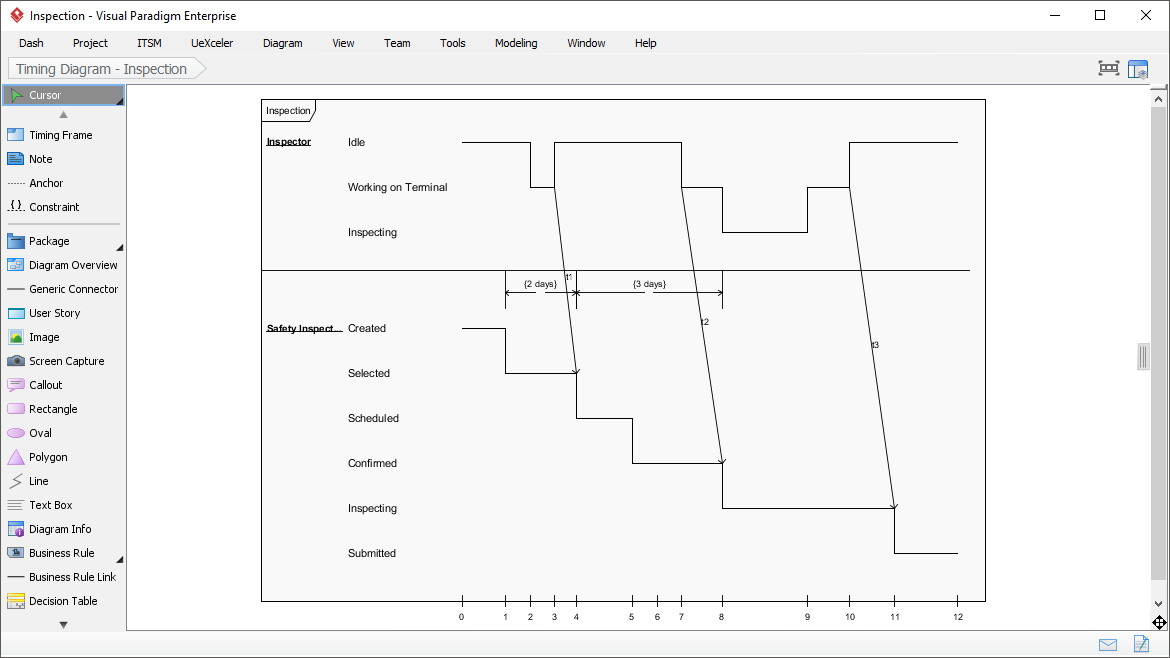
Let’s analyze the structure of a Timing Diagram as seen in the Visual Paradigm interface. The diagram is built on a Cartesian coordinate system where the horizontal axis represents time and the vertical axis represents object lifelines.
1. The Timing Frame
The diagram is encapsulated within a Timing Frame. This container defines the scope of the model and typically includes a time axis at the bottom. In Visual Paradigm, this frame is dynamic; you can drag the time markers to adjust the simulation speed or zoom in on specific events.
2. Lifelines and States
Each vertical line represents a Lifeline (e.g., an Inspector or a Safety Inspection object). The horizontal segments along these lines represent States.
- State Notation: In the provided example, the Inspector lifeline transitions through states such as “Idle,” “Working on Terminal,” and “Inspecting.”
- Active Focus: The narrow, vertical bars crossing the lifeline (often called “Focus of Control”) indicate periods where the object is actively performing a task. In the image, the diagonal lines crossing the lifelines suggest active processing or the execution of an operation.
3. The Time Axis
The most defining feature is the horizontal timeline at the bottom (0, 1, 2, 3…). This allows you to precisely map when a transition occurs. For instance, you can see that the transition from “Idle” to “Working on Terminal” happens at a specific coordinate on the x-axis.
Step-by-Step: Modeling a Safety Inspection Workflow
Let’s walk through the logic of the diagram shown in the Visual Paradigm screenshot. We will model a scenario where a Safety Inspector manages an inspection process.
Step 1: Defining the Actors
First, we establish the participants. Our diagram features two primary entities:
- Inspector: The human or automated agent performing the actions.
- Safety Inspection (Safety Inspect…): The object representing the inspection task itself.
Step 2: Mapping the Lifecycle
Now, we map the state changes over time. The diagram illustrates a clear flow:
- Initialization: The Inspector starts in an Idle state.
- Preparation: The inspector transitions to Working on Terminal, indicating the setup phase.
- Task Execution: The Safety Inspection object transitions from “Created” to “Selected” and then “Scheduled.”
- Active Phase: The inspector enters the Inspecting state. This is a critical duration.
- Completion: The inspection is “Confirmed” and eventually “Submitted.”
Step 3: Analyzing Constraints and Duration
The diagram includes specific annotations to define constraints. Notice the horizontal bracket labeled (2 days) and (3 days).
These are Constraints. They tell us that the duration between specific events is not instantaneous. For example, the system might require a mandatory 2-day waiting period between the “Selected” and “Scheduled” states. This is vital for scheduling logic in real-world applications.
Step 4: Handling Time Units
Visual Paradigm allows you to manipulate the time unit directly. In the screenshot, the time axis is labeled with integers (0-12). However, the constraints explicitly mention “days.”
To model this effectively:
- Scale the Axis: You must configure the time unit property of the Timing Frame to match your domain (e.g., Seconds, Minutes, Days).
- Visual Alignment: Ensure that the “Inspecting” state aligns correctly with the “3 days” constraint to ensure the logic holds true across the timeline.
Best Practices for Timing Diagrams
When creating these diagrams, accuracy is paramount. Here are some professional tips for maintaining clarity:
- Keep it Linear: While time can be non-linear in some simulations, standard UML timing diagrams are best kept linear to avoid confusion.
- Use Constraints for Logic: Don’t just draw lines; use
Constraintelements (like the ones in the screenshot) to define the mathematical or logical rules governing the time intervals. - Focus on Critical Path: In complex systems, do not model every single micro-second. Focus on the critical paths that determine system failure or success.
Conclusion
The Timing Diagram is a powerful bridge between abstract system design and concrete implementation. By utilizing the features of Visual Paradigm, such as the dynamic timing frame and constraint tools, you can create robust models that accurately predict system behavior over time. Whether you are debugging a real-time signal processing loop or planning a multi-day inspection schedule, mastering this diagram type will significantly enhance your architectural modeling capabilities.