
Mastering UML Use Case Diagrams with Visual Paradigm: Modeling Complex System Interactions
In the world of software architecture, few diagrams are as critical for aligning stakeholders as the Use Case Diagram. While often misunderstood as merely a drawing of “screens” or “buttons,” a Use Case diagram is actually a map of functional requirements and business goals. It defines what the system does, rather than how it does it.
Based on the principles found in Visual Paradigm, this tutorial will guide you through the anatomy of a robust Use Case model, using an ATM System as our primary case study. We will explore how to structure relationships like <<include>> and <<extend>> to create a flexible, scalable design.
1. The Core Components: Actors and Use Cases
Every Use Case diagram rests on a foundation of interaction. The diagram visualizes the boundary between the system and its environment.
Actors (The Users)
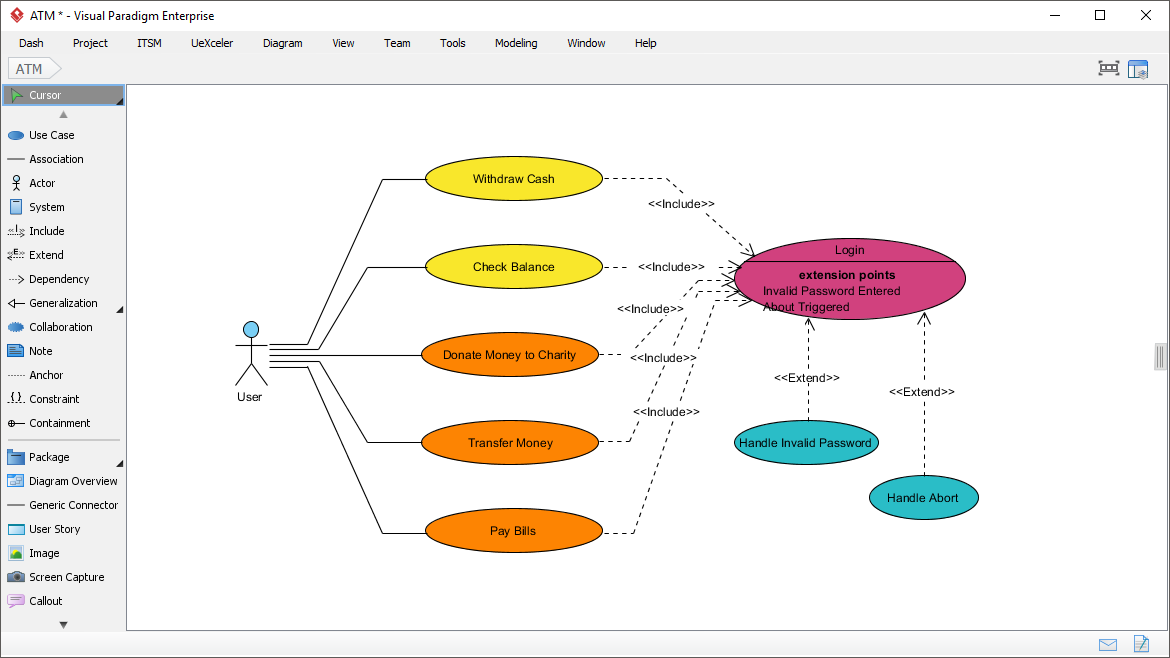
An Actor represents a role played by an external entity that interacts with the system. It is not necessarily a human being; it could be a hardware device or another software system. In our ATM example, we have a generic User actor.
Use Cases (The Goals)
A Use Case represents a discrete unit of functionality or a business goal. It is an atomic action that produces a valuable result for the actor. Notice the distinction in the diagram: Withdraw Cash and Pay Bills are distinct goals.
2. Mastering Relationship Logic: Include vs. Extend
The true power of UML lies in how these components connect. Visual Paradigm allows you to visualize complex logic using two specific stereotypes: <<include>> and <<extend>>.
The “Include” Relationship (<<include>>)
This relationship implies that the base use case must include the functionality of the target use case to complete its task. It is a mandatory dependency.
- Logic: “To do A, you must do B.”
- Example from Diagram: The diagram shows that Withdraw Cash, Check Balance, and Transfer Money all
<<include>>Login. This means you cannot perform any of these actions without first authenticating. The Login use case is a required sub-step.
The “Extend” Relationship (<<extend>>)
This relationship represents an optional behavior that is triggered under specific conditions. It adds functionality to the base use case only if a specific extension point is met.
- Logic: “If condition X happens, then do B. Otherwise, skip B.”
- Example from Diagram: The diagram illustrates
<<extend>>relationships pointing back to the Login use case.- Handle Invalid Password: If the user enters the wrong password, the system extends the login flow to handle the error.
- Handle Abort: If the user decides to cancel the transaction midway, the system extends the flow to handle the abort.
Extension Points
For an <<extend>> relationship to be valid, the base use case must define extension points. These are specific locations in the base logic where the extension can insert itself. In the Login use case, the diagram explicitly lists “Invalid Password Entered” and “Abort Triggered” as these points.
3. Advanced Modeling: Grouping and Decomposition
In complex systems, not all features are created equal. The diagram demonstrates a technique often used to organize requirements.
Notice the Donation and Bill Payment use cases. These are colored differently (orange) compared to the standard yellow and blue. In Visual Paradigm, this often signifies a specific package or category. For example, “Donation” might be a specialized service requiring a different backend integration than standard banking operations. Grouping use cases helps non-technical stakeholders understand the scope of different subsystems.
4. Implementing in Visual Paradigm
Visual Paradigm simplifies this modeling process through a drag-and-drop interface. Here is how you would construct the logic seen in the screenshot:
- Define the Boundary: Create a “System” box to define the perimeter of your ATM software.
- Place Actors: Drag the “Actor” tool to the left of the system boundary. Name it “User”.
- Create Use Cases: Drag the “Use Case” tool inside the boundary. Label them (e.g., “Withdraw Cash”).
- Connect Relationships:
- Select the
<<include>>connector tool. - Drag from the “Withdraw Cash” use case to the “Login” use case. The arrow points from the base to the included behavior.
- Select the
<<extend>>connector tool. - Drag from “Handle Invalid Password” to “Login”. The arrow points from the extension back to the base.
- Select the
Conclusion
The diagram displayed in Visual Paradigm is more than a picture; it is a logical specification. By correctly utilizing <<include>> for mandatory steps and <<extend>> for optional or exceptional flows, you create a model that is resilient to change. Whether a business rule changes or a new feature is added, a well-structured Use Case diagram allows your development team to see exactly where the impact will be.