
Mastering Mermaid Flowcharts with VPasCode: Diagram-as-Code Revolution
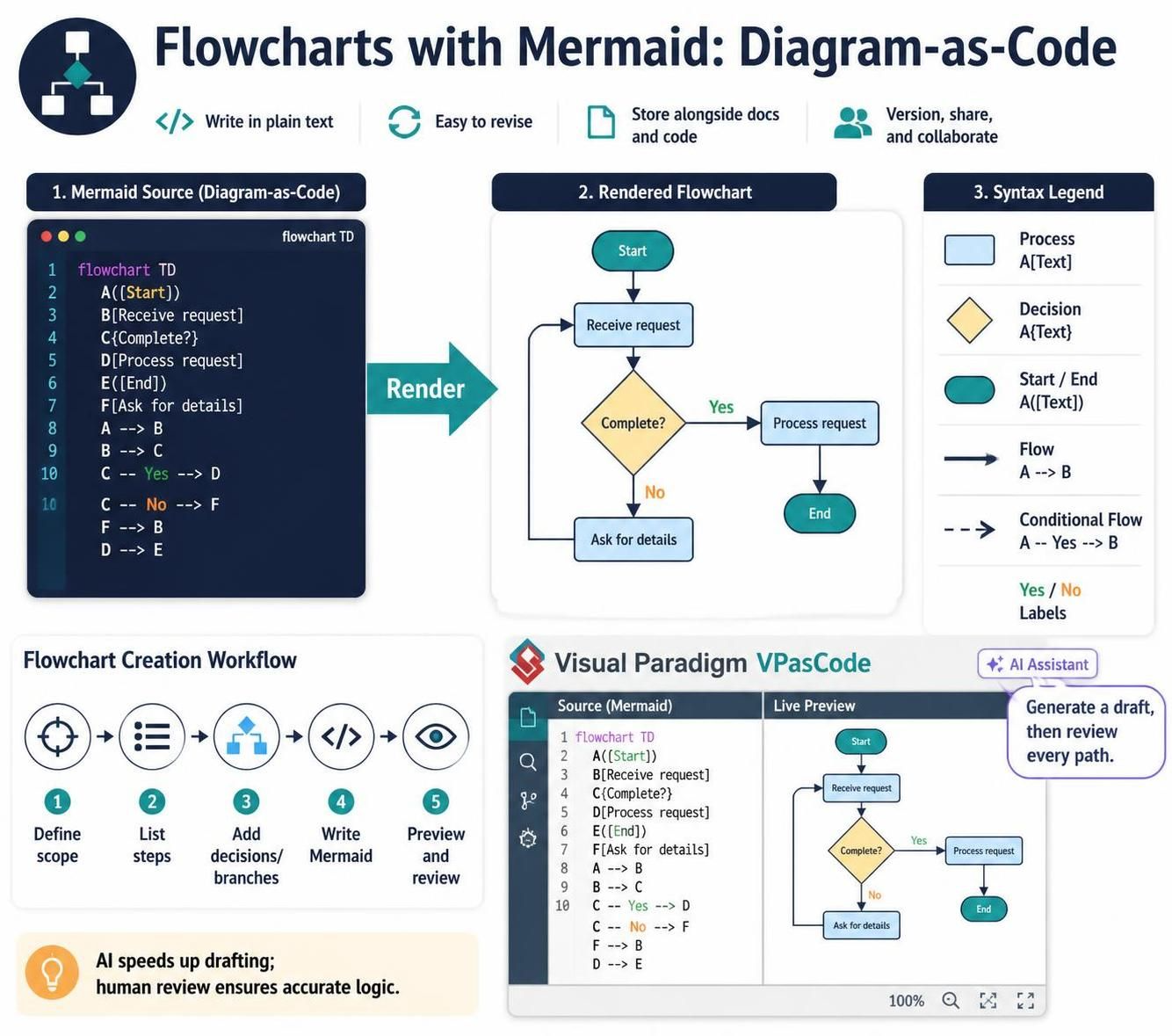
In the realm of technical documentation and system design, the ability to visualize complex processes is paramount. Traditionally, creating flowcharts involved dragging and dropping shapes within a GUI, a method that often leads to “spaghetti diagrams” that are difficult to maintain, version control, or collaborate on. Enter Mermaid, a powerful JavaScript-based diagramming and charting tool that allows you to define diagrams using a simple text-based syntax.
This tutorial explores the transformative concept of Diagram-as-Code using Mermaid, specifically tailored for the Visual Paradigm VPasCode environment. By treating your diagrams as source code, you gain the ability to version them alongside your software, automate their generation, and ensure that your documentation remains perfectly synchronized with your logic.
1. The Core Philosophy: Why Diagram-as-Code?
Mermaid shifts the paradigm from visual editing to logical definition. Instead of manually positioning a rectangle or a diamond, you write a declarative description of the process. This approach offers several distinct advantages:
- Version Control Friendly: Unlike binary image files or complex XML-based Visio files, Mermaid source files are plain text. They play nicely with Git, allowing you to see exactly what changed in a diff (e.g., “Line 4 added a new decision node”).
- Reusability: You can define a flowchart once and render it in multiple formats (PNG, SVG, PDF) or embed it directly into Markdown documentation, GitHub READMEs, or Notion pages.
- Automated Maintenance: If you need to change a step in your process, you simply edit the text file. The rendering engine handles the layout, ensuring connections are redrawn correctly without manual tweaking.
2. Understanding the Syntax: The Anatomy of a Flowchart
To master Mermaid, you must understand its specific vocabulary. A flowchart is constructed using two main components: Nodes (the shapes) and Edges (the connections).
Defining the Flow Direction
Every Mermaid chart starts with a direction declaration. In the example below, we use flowchart TD, which stands for Top-Down. This tells the renderer to place the start node at the top and flow downwards.
Node Syntax
Nodes are defined by an ID (a unique letter or number) followed by the shape type in parentheses or brackets:
A((Start)): The double-rounded shape represents a Start or End point.B[Receive request]: The square brackets create a standard Process rectangle.C{Complete?}: The curly braces create a Decision diamond, typically used for branching logic.
Defining Connections (Edges)
Edges define the path between nodes. The arrow type determines the flow:
-->: A solid line with a classic arrowhead for standard flow.--: A solid line without an arrowhead, often used for feedback loops.==>: A thick line indicating a strong or critical connection.
3. Practical Example: The Request Workflow
Let’s walk through a complete, functional example. Imagine a system that processes user requests. It must receive the request, check if it is complete, and then either process it or ask for more details.
The following code snippet represents the “Source” file. Note how the text description maps 1:1 to the visual logic.
flowchart TD
    A((Start))
    B[Receive request]
    C{Complete?}
    D[Process request]
    E((End))
    F[Ask for details]

    A --> B
    B --> C
    C -- Yes --> D
    C -- No --> F
    F --> B
    D --> E
Decoding the Logic
- The Loop: Notice the line
F --> B. After asking for details (F), the flow returns to “Receive request” (B). This creates a loop in the diagram, ensuring the user is prompted until the request is valid. - Labeling Edges: The syntax
C -- Yes --> Dallows you to label the specific path. When the decision diamond (C) is “Yes”, the flow goes to D. If “No”, it goes to F.
4. The VPasCode Workflow: AI-Assisted Modeling
While writing code manually is efficient for experts, the Visual Paradigm VPasCode editor elevates this experience by integrating AI capabilities. The workflow is designed to be iterative and collaborative.
Step 1: Define Scope & List Steps
Before writing code, you define the boundaries of your diagram. What is the starting point? What is the end state? What are the critical decision points?
Step 2: AI-Assisted Drafting
Using the VPasCode AI Chatbot, you can describe your process in natural language. For example, you might type: “Create a flowchart for a login system that checks if a user exists, then validates the password, and handles failed attempts.” The AI will generate the Mermaid syntax instantly.
Step 3: Review and Refine
The editor provides a Live Preview pane. As you edit the code, the diagram updates in real-time. This allows you to verify that the AI-generated logic matches your requirements. You can tweak the syntax—changing “Login Failed” to “Retry Limit Exceeded”—and watch the diagram update instantly.
Conclusion
By adopting Mermaid within the VPasCode environment, you are not just drawing pictures; you are engineering your documentation. You gain the precision of code and the clarity of a diagram. Whether you are documenting a simple approval process or a complex distributed system architecture, Diagram-as-Code ensures your visual assets are robust, maintainable, and ready for the modern software lifecycle.