
Mastering UML Sequence Diagrams: A Step-by-Step Guide to System Interactions
In the world of software engineering, visualizing how different parts of a system communicate is just as critical as writing the code itself. One of the most powerful tools for this is the Sequence Diagram. Whether you are a developer debugging a logic flow or a system architect planning a new microservice, understanding the chronological order of interactions is vital.
This tutorial will deconstruct the anatomy of a sequence diagram using a practical “Search” scenario, breaking down the four core components you need to master.
1. The Foundation: Understanding Actors and Lifelines
Before any interaction can happen, we must identify the participants. In a sequence diagram, these participants are represented in two distinct ways depending on their nature.
Actors
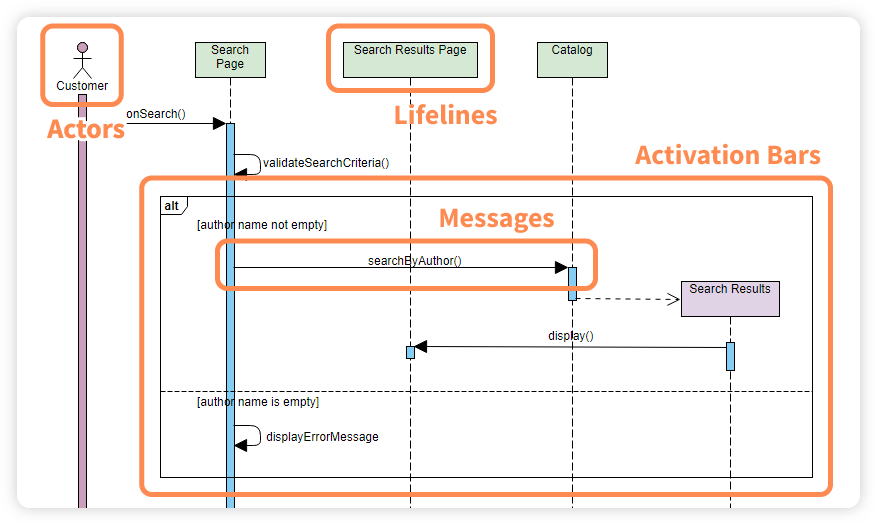
An Actor represents the human user or an external system that initiates the process. They are typically drawn as a stick figure. In our scenario, the Customer is the actor initiating the search.
Lifelines
Lifelines represent the system components, objects, or classes involved in the interaction. Visually, they appear as vertical dashed lines extending downwards from the top of the diagram. Think of a lifeline as the timeline of existence for that specific object during the interaction. In our example, we have lifelines for the Search Page, Search Results Page, and the Catalog.
2. The Flow: Messages and Activation Bars
Once the participants are defined, the story of the system begins to unfold through communication.
Messages
Messages are the horizontal arrows connecting the lifelines. They represent the actual calls, requests, or data exchanges. The direction of the arrow indicates who is sending the information to whom.
- Synchronous Messages: Solid arrows with a filled arrowhead (like
onSearch()) indicate a request where the sender waits for a response. - Asynchronous Messages: Dashed arrows (like
display()) indicate a signal sent without the sender necessarily waiting for an immediate return.
Activation Bars
When an object receives a message and is actively performing an operation, we draw a vertical rectangle on its lifeline. This is called an Activation Bar (or Execution Occurrence). It visually represents the “active” period of the object, showing exactly when the object is busy processing logic.
3. Advanced Logic: Alt Frames
Real-world software rarely follows a single linear path. It makes decisions. In our diagram, you will notice a large frame labeled alt. This stands for “Alternative” (or opt for optional).
This frame encapsulates conditional logic. The diagram splits into two sections based on a specific condition:
- [author name not empty]: If the author name exists, the system searches the Catalog and displays results.
- [author name is empty]: If the author name is missing, the system displays an error message.
Tooling: Visual Paradigm
To create professional-grade diagrams like the one described above, you need the right modeling software. Visual Paradigm is the industry-standard tool for UML and systems modeling. It offers a robust suite of features specifically designed for creating Sequence Diagrams, including drag-and-drop lifelines, automatic message generation, and support for complex combined fragments like alt and loop frames.
By using Visual Paradigm, you can streamline your design process, ensuring that your diagrams are not only accurate representations of your architecture but also ready for documentation and stakeholder reviews.