

If you’re new to project management or software development, organizing your ideas can feel overwhelming. Where do you start? How do you break down big projects into smaller tasks? This is where tree diagrams come in—and thanks to artificial intelligence, creating them has never been easier.
This beginner-friendly guide will walk you through everything you need to know about the Visual Paradigm AI Tree Diagram Maker, using a simple fitness tracker app as our example. No prior experience required!
What Is a Tree Diagram?
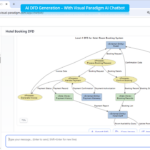
Think of a tree diagram like a family tree, but for your project ideas. It starts with one main concept at the top (the “root”) and branches out into smaller, more detailed pieces. For example:
- Root: Fitness Tracker App
- Branch 1: User Authentication
- Branch 2: Activity Tracking
- Sub-branch: Start/Stop Run Feature
This visual structure helps you see the big picture while managing the details—a must-have skill for any beginner in project planning.
Why Use an AI-Powered Tool?
Traditional diagramming requires you to manually draw boxes, connect lines, and format everything. The AI Tree Diagram Maker changes the game by:
- Instant Generation: Type your ideas in plain English, and the AI builds the diagram for you
- Smart Organization: The AI understands relationships between concepts and arranges them logically
- Time-Saving: What used to take hours now takes minutes
Getting Started: Your First Diagram
Let’s create a simple requirements breakdown for a fitness tracker app. Here’s how the process works:
Step 1: Define Your Main Goal
Start with your epic (main feature). In our case: “Fitness Tracker App”.
Step 2: Break It Down
Identify major features like “User Authentication,” “Activity Tracking,” and “Health Metrics.”
Step 3: Add Details
Under “Activity Tracking,” add user stories like:
- User can start and stop a run
- User can view distance traveled
- User can track calories burned
The beauty of the AI-powered project assistant is that you can simply type these ideas in natural language, and it will structure them into a professional tree diagram automatically.

Understanding the Interface: Two Views, One Goal
As a beginner, you might wonder: “Do I need to learn complex diagramming tools?” Not at all! Visual Paradigm offers a dual-view interface that caters to different working styles:
Text Editor View
If you prefer writing, use the text editor to create your hierarchy using simple indentation. It’s like writing an outline in a word processor.
Visual Canvas View
Switch to the visual view to see your ideas as a beautiful, organized tree diagram. The best part? Changes in one view instantly update the other—no manual syncing required!
Making Your Diagram Smart: Adding Properties
Here’s where beginners often get stuck: “How do I track which tasks are done, which are urgent, and who’s responsible?”
The Property Editor solves this. Every node (box) in your tree diagram can store important information:
- Priority: High, Medium, or Low
- Status: Proposed, In Progress, or Implemented
- Assignee: Who’s working on it?
- Timeline: When is it due?
In our fitness tracker example, when you select the user story “User can start and stop a run,” you can set its priority to “Medium” and status to “Implemented.” This turns your simple diagram into a living project database that grows with your project.
Meet Your AI Assistant: Ask Questions, Get Answers
This is the feature that truly sets the Visual Paradigm AI Tree Diagram Maker apart. Once you’ve built your diagram and added properties, you can talk to an integrated AI chatbot about your project.
Beginner Example:
Instead of manually counting tasks and guessing timelines, simply ask:
“How long will it take to finish the Activity Tracking features?”
The AI reads your entire diagram, checks which items are marked as “Implemented” versus “Proposed,” and provides a smart estimate (like “1–2 weeks”). It’s like having an experienced project manager looking over your shoulder!

Real-World Applications for Beginners
While we’ve used a fitness tracker app as our example, the online tree diagram maker works for countless scenarios:
- Work Breakdown Structures (WBS): Break large projects into manageable tasks
- Organizational Charts: Map out team structures
- Decision Trees: Visualize different outcomes and choices
- Risk Registers: Identify and categorize potential project risks
- Mind Maps: Brainstorm ideas for essays, presentations, or business plans
Tips for Beginners
- Start Small: Don’t try to map your entire project at once. Begin with one feature or module.
- Use Natural Language: The AI understands plain English. Just type what you’re thinking.
- Update Regularly: As your project evolves, update the status and properties. This keeps your AI assistant’s insights accurate.
- Ask Questions: The more you interact with the AI chatbot, the more you’ll discover about your project’s hidden challenges and opportunities.
- Collaborate: Share your diagrams with team members. The visual format makes it easy for everyone to understand the project scope.
Ready to Get Started?
The Visual Paradigm AI Tree Diagram Maker removes the complexity from project planning, allowing beginners to create professional-grade diagrams in minutes. Whether you’re a student organizing a research project, a new product manager mapping features, or a developer planning your next app, this tool gives you the structure and intelligence you need to succeed.
Start your journey today: Try the AI Tree Diagram Maker Now and transform your ideas into actionable plans!
Further Learning Resources
Want to dive deeper? Check out these helpful guides:
- AI Tree Diagram Maker – Visualize Hierarchical Data Instantly: Learn the fundamentals of the AI-driven tool that generates mind maps, org charts, and WBS diagrams from text descriptions.
- From Text to Diagram: How Symbol Makes Hierarchy Editing Fast and Intuitive: Master the Symbol feature to quickly convert hierarchical text into editable tree diagrams.
- Visualizing Complex Ideas with AI-Powered Tree Diagrams: Discover how AI-driven tree diagrams help break down complex concepts into clear visual structures.
- Comprehensive Tutorial: Mastering the AI Tree Diagram Maker (IntelliTree): Follow this detailed tutorial to transform natural language into professionally formatted hierarchical diagrams.
- Risk Register Template with Tree Diagram Visualization: Learn how to use tree diagrams to visualize risk hierarchies and mitigation plans.
- Decision Tree Software for Visual Modeling: Build and analyze decision trees to improve your structured problem-solving skills.
- Family Tree Maker for Visual Documentation: Create detailed genealogical structures with customizable relationships.
- Free Tree Chart Tool – Visual Paradigm Smart Board: Explore this intuitive, web-based platform for creating and customizing various hierarchical tree structures.